Posts

Automator application to connect SMB drives with Kerberos Authentication

Image
All PC workstations in the office belong the company domain and single sign-on with kerberos works pretty much flawlessly.  As a Mac user, I also wanted the benefits of single sign-on.  Specifically, it is really nice not having to enter/save passwords for all the company websites.  In addition, connecting to network drives is faster with kerberos. Lately, Ticket Viewer has not been playing nicely on Sierra, so I am using the terminal to run kinit to get a kerberos ticket at the beginning of the day.   This depends on some settings in /etc/krb5.conf which are displayed below.  Remember to replace REALM with your company domain. [appdefaults] forwardable = true proxiable = true no-address = true [libdefaults] default_realm = REALM dns_lookup_kdc = true dns_lookup_realm = true [realms] My typical morning routine is to open the laptop, open terminal, run "kinit username@REALM" to get the ticket, then run an automator application to mount the ...
Bye bye macbook air :( Hello 13" macbook pro!

Recently, I was assigned to work at a supplier's facility about 200 miles away from the office.  The network in that location basically required me to run everything locally on my laptop instead of trying to use remote desktop with my PC in the office. Sadly, the macbook air was not up to the task of running a complex Navisworks model in a Windows virtual machine.  This was just about the time that Apple released the new model Macbook Pros with the Thunderbolt 3 (USB-C connector) connections.  Armed with a credit card, I headed to Best Buy to try out the 15-inch, then the 13-inch macbook pros.  I ended up returning both of them: the 15-inch because it was too expensive and the 13-inch because its 8 GB of RAM was not enough. On the new macbook pros, I did find the touchbar useful for limited cases, and TouchID was fantastic.  The keyboard was mostly fine, but I found I kept missing the delete key.  I think it is slightly farther away from the J key t...

Use Screensaver to leave an away message with a keyboard shortcut

Image
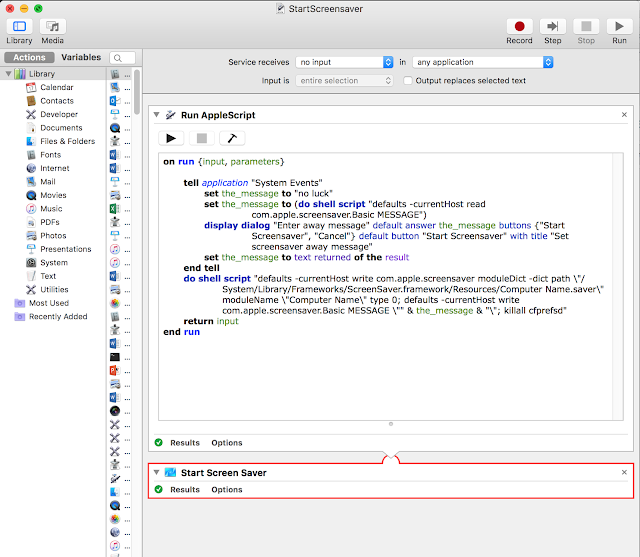
I am a focal point at work for various issues so I get lots of visitors to my desk who want to ask questions.  If I have to leave my desk, it is helpful to leave a note so people can find me if they really need me at that moment. I have used the Computer Name screensaver on my Mac with a custom message, but going to System Preferences -> ScreenSaver -> Options... to change the text was always a bit of a psychological burden, so I started looking into a way to change that text programmatically. After some internet research, I was able to develop an Automator service to prompt for a message and then start the screensaver using that message.  Here is the image of the automator service. I saved my service as StartScreensaver.  Then I opened System Preferences, went to Keyboard, and then Shortcuts to add a keyboard shortcut that will launch my service.  I chose Command-shift-8, but you can pick whatever you want. Now I just hit Command-Shift-...

Macbook Air 11 the best for me for years

I have been using an 11" macbook air as my primary computer since Apple first released them.  I find it to be the best machine for me for now.  In this article I describe what I use my computer for and how well the 11" macbook air performs.  My current machine is a 2015 Macbook air 11-inch with the i5 processor, 4GB RAM, 265GB storage, and USB 3.0 ports. Work I am engineer and use my macbook air for almost all of my work.  My work consists of writing and editing long-form, technical documents in collaboration with others marking up PDF drawings producing the occasional sketch or organizational chart personal information such as email, calendar, and contacts instant messages video conferencing with screen sharing video production some SharePoint administration. I do use two external, 24-inch monitors on my sit-stand desk at work with my laptop.  One is connected using the thunderbolt port and a DVI adapter.  The other is connected with a Disp...

MS Word and Track Changes

I discovered something nice in MS Word today regarding track changes. For most of the documents I need to review, I have wished that there was a way to tell Word not to track formatting changes. Nobody ever cares about them and they just make it take longer to accept individual changes. Today I discovered how to batch accept/reject all of the formatting changes only. You need to show only formatting changes, then use the arrow next to the Accept/Reject change button to choose Accept/Reject all changes shown. Then show the insertions and deletions as well as comments. Voila! No more formatting changes to clutter the view or take up your time. The other cool thing my friend showed me is how to copy the tracked changes, aka markup, from one document to another. My particular use case is when migrating a document under review to a new template while preserving the change history. All that is required is to turn off track changes in both the source and destination documents, view ei...

Media server for Mac with wake on lan, streaming, automounting

Well, I finally have a decent system in place for storing and consuming media on my macs. My wife and I each have Mac laptops. We store all our Movies on a file server now running Ubuntu 10.10 configured with netatalk, advertising itself via avahi, and now the laptops automatically mount the shares when the server is turned on. This last part was needed because I like to use iTunes to keep track of which TV episodes I've watched as well as use my iPhone to control volume and playback. She prefers to just use the Finder to navigate to the movie she wants to put on for the kids without opening iTunes. It turns out the magic recipe is to use keys for authentication with ssh, then on the server add a line like this for each machine you want to automatically mount the network share: /usr/bin/ssh user@machine.local osascript -e \'mount volume \"afp://username@hostname.local/ShareName\"\' \&\& open /Volumes/ShareName & That is all on one line. As you are ...

SwitchRexX and Toshiba 32HLC56

After some trial and error, I discovered the perfect settings for my Toshiba 32" TV with SwitchResX connected via VGA. Horizontal Vertical Active 1152 716 Front porch 86 36 Sync width 128 7 Back porch 298 39 Blanking 512 82 Total 1664 798 Scan rate 47.776 59.879 Positive sync Not checked Checked Now I won't miss a thing.

iChat IRC transport with OpenFire and Kraken

Long have I wanted the all-in-one functionality of Adium with the AV chat capabilities of iChat. I really wanted to use iChat for all my messaging needs. I have finally achieved my goal using Openfire , a free XMPP server, and the Kraken plug-in that provides the tranports for other instant messaging services. In my case, I am interested specifically in IRC, but I got my little-used MSN account working also for test purposes. Kraken provides many different tranports. I should clarify my goal a bit. I only care about AV capabilities for protocols that iChat officially supports so I have not tested anything beyond text chatting with MSN. I only use IRC for text chat anyway, no DCC or file transfers. What do you need? You need to install the Openfire server and the Kraken plug-in. The Current versions when I did this were Openfire 3.6.4 and Kraken 1.1.3.beta2. Openfire had a binary download for OS X Snow Leopard, but I had to build Kraken from source. Click on this direct link ...

Merge script

I needed to combine all the files in two different directories. The challenge was that in two different directories, two different files had the same name. So I wrote a merge script to rename the file from the source directory if the name already existed in the target directory. It appears below: #!/bin/bash # Merge the contents of two directories, renaming duplicate files so that no files are overwritten # usage merge.sh destdir SRC1="$1" DEST="$2" for FILE in $( ls "$SRC1" ); do let "i = 0" FN="$DEST/${FILE/%.jpg/-$i.jpg}" while [[ -e "$FN" ]]; do let "i += 1" FN="$DEST/${FILE/%.jpg/-$i.jpg}" done ln -v "$SRC1/$FILE" "$FN" done It worked for my purposes.

My GeekTool desktop

Image

Snow Leopard, the Slow Finder, and Path Finder

I don't know about the rest of you, but the Finder on Snow Leopard is extremely slow for me. I was seriously considering downgrading to Leopard, but the exchange support keeps me on Snow Leopard. As I was browsing the forums, I found a post that mentioned Path Finder . I had forgotten about Path Finder. I tried it back when I was using Tiger, but it seemed overkill for my needs. My frustrations with the current Finder led me to give it another try. Oh my goodness! Finally, quick, efficient file browsing! Even network shares are extremely fast. For anyone suffering with Snow Leopard's Finder, give Path Finder from CocoaTech a try. It makes my Mac a joy to use again. For all the KDE users out there, all the nifty utilities and features of Path Finder make me think of the konqueror file browser. It includes dual-pane browsing, tabs, a terminal drawer that opens to the current directory, recent folders/documents list, and more. Check it out if you have time. Once nice ...

Semi-automatic photo scanning

For anyone who has a lot of photos to scan, the idea of scanning multiple photos and looking through each file to cut and paste the photos into individual photos can be real turn off if not much time is available. I know I certainly don't want to have to crop each photo out. Shouldn't there be some way for the computer to automatically pick out each individual photo? Luckily, there is. Below I present a script, that coupled with some intelligent scanning methods, automates the process of splitting the scan file into individual files of single photos. The ImageMagick package is a set of command line tools that can do all kinds of things with images, including extracting regions of photos. If I know the size of page, the size of the photos, their position on the page, and the scan density (dpi), then I can use a script to extract each photo from the aggregate scan. I made and printed a template that contains boxes slightly bigger than the photos at known positions on the pa...

Engineering with a Macbook Pro

Image
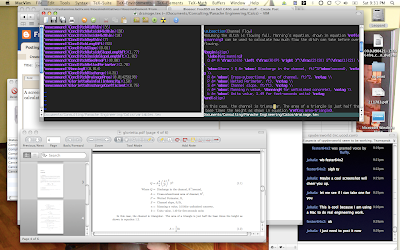
A screenshot of me doing real engineering work on my Macbook Pro. I am writing up some calculations. You can MacVim with some LaTeX code. The code on the right corresponds to the equation in the PDF file shown below the MacVim window.

Arch linux with XFCE4 and the Awesome window manager

Image
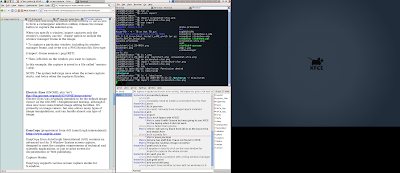
Here comes the obiligatory screenshot:

Transparent xmonad

Image
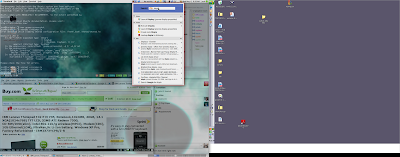
It seems that tiling window managers suit me as I am back to Xmonad with GNOME. This time I added xcompmgr to the mix and got a nice config that fades all non-focused windows (except rdesktop for some reason. Perhaps because it is on the other screen). I also have some window shadows which are nice for floating dialog boxes. See the screenshot below:

Ubuntu 9.04 Jaunty Jackalope screenshot

Image
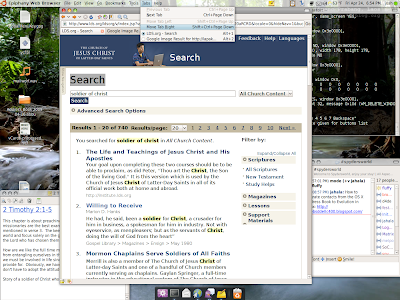
Here my latest desktop in Ubuntu 9.04. Here my latest desktop in Ubuntu 9.04.

Migrate OS X Address Book contacts to linux Evolution

Finally, I have found the ideal way to migrate contacts from the OS X Address Book to linux Evolution! The most obvious way is to export the address book as a vcard and then import it into Evolution, but you lose the notes you may have entered about people. After trying all kinds of things, the best solution I found is this: Sync your address book with a yahoo account in OS X. Then log into your yahoo account and export the contacts as a vcard single file. You can then import that vcard file into evolution and everything comes over like it is supposed to, including the notes. I have been searching for this for a long time. I remembered that the mac was syncing with Yahoo (you have to do this to sync with Google), and I decided just to try it. I picked the right option the first time. w00t!

current Desktop

Image
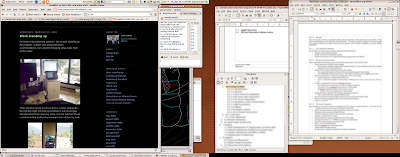
So here is a screenshot of my current setup doing real work. I am running Ubuntu 9.04 Jaunty Jackalope on a Lenovo thinkpad T60 with a 2 GHz Intel Core Duo and 2 GB RAM. The window behind the browser and under the irc session is a RDP session to a windows box running Microstation CAD.

Work standing up

Image
For heath and productivity reasons, I like to work standing up. My employer is rather slow at providing such accommodations, so I using the following setup made from printer paper: Then, someone raised a concern that in a minor earthquake, the monitor might fall onto my neighbor or out the window and requested I take down my setup. So I did, but then I found a solution to that problem by moving it over a bit on my desk.

Colloquy screenshot

Image
Colloquy screen shot using keynote theme: