Posts

Claude helped me make a long division worksheet generator using LuaLaTex

 I spent about 45 minutes with Claude and some manual editing and ended up with the following file that can be compiled with LuaLaTex to produce 10 pages of long division fact problems.  There are variables at the top of the page to allow you to specify the fact ranges you want. % ============================================================ %  Long Division Worksheet — 10 Random Pages %  Compile with: lualatex long_division_random.tex % ============================================================ \documentclass[10pt]{article} \usepackage[margin=0.5in, top=0.55in, bottom=0.5in]{geometry} \usepackage{longdivision} \usepackage{array} \usepackage{pgfmath} \usepackage{pgffor}    % provides \foreach % ============================================================ %  USER SETTINGS — edit these four values % ============================================================ \newcommand{\MinQuotient}{2}    % smallest possible dividend \newcommand{\MaxQuotient...
Samba in Debian 13 with WS-Discovery working properly in Windows 11 without compromising security

Recently, a buddy asked me to help him configure a linux machine with a shared folder that would work on MacOS and Windows 10. Everything work in MacOS without issues. The trouble came when trying to access the share in Windows 10. After a bunch of research, I learned that Windows 10 has a new way of discovering computers on the network and needs to be told in advance what credentials to use.   Samba Configuration Below is what I did to get it all working without compromising security I used this smb.conf file. There is a bunch of stuff to make the Mac clients play nicely and 3 lines to make it work properly with Windows 10/11.  After some testing, I discovered that the share name should NOT be the same as the shared folder name in the path. [global]    workgroup = WORKGROUP    log file = /var/log/samba/log.%m    max log size = 1000    logging = file    panic action = /usr/share/samba/panic-action %d    server r...

Recording the iPhone screen and Mac screen at the same time in one video

Image
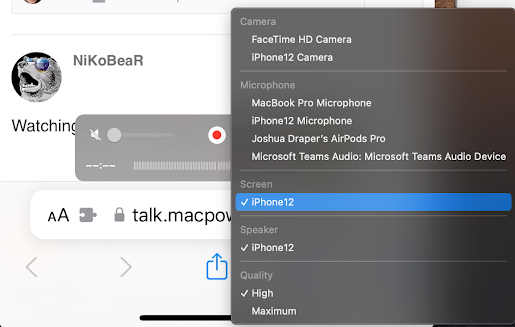
 I was browsing the Mac Power Users forum when I ran across this question : "I’m trying to figure out a way to record a demo of my web-based software simultaneously recording a desktop view and a mobile view. I basically want to use and interact with one browser window and have another browser window showing the same thing but with a mobile view. Thoughts?" I use QuickTime Player.  Connect your iPhone/iPad to your Mac with a lightning cable and start a New Movie Recording.  Pick your iPhone/iPad screen as the video source by clicking the little drop down arrow next to the red recording button.   You will get a window showing the contents of your device's screen.  There is no need to actually start recording this video. Leave that window open and start a New Screen Recording in QuickTime player at the same time.  Then just arrange your iPhone window and browser window on your screen and start recording.  You will see both things at the same time. ...

Opening Microsoft Teams meeting links directly in Teams instead of opening Safari first on the Mac

There is a free, open source utility called Finicky that you can set as the default browser on your Mac and then configure to open certain links in certain browsers. I use it to make Teams launch directly when I click on Teams meeting links instead of first opening Safari and then opening Teams. You can install it from the site linked above or with homebrew with the following command: brew cask install finicky After installing it, save a text file called .finicky.js in your home directory. That period at the beginning of the filename needs to be there. Add the content below to make Teams open directly when you click on a Teams meeting link in any program. You can change the "Safari" on the defaultBrowser line to whatever your default browser is. /** * Save as ~/.finicky.js */ module.exports = { defaultBrowser: "Safari", rewrite: [ { match: /teams.microsoft.com\/l\/meetup-join\//, url: { protocol: "msteams" } } ], handlers: [ { match...

Clean Install of Mojave on 2018 MacBook Pro

long story.. Disk Utility partition lead to second container disk that looked wrong, so went into terminal and used diskutil eraseDisk to erase the whole disk and use APFS. That looked fine.  Had troubles with the network recovery.  Important content could not be downloaded so I wanted to boot from USB installer for Mojave, but I could not.  tried to use startup security utility, but since I had erased the drive, there was no admin password and so startup security utility would not run. I plugged in the USB drive and disk utility recognized it.  In terminal, I navigated to /Volumes/Install Mojave..../Contents/MacOS and ran InstallAssistant in the background.  That seems to have worked so far. After restart, everything was fine.

MacOS Folder Action to watermark images using ImageMagick 6 for posting on Facebook

Image
I wanted to prepare images to be posted on Facebook which means I needed to resize them to 1200x600 pixels and overlay a watermark.  I also want to keep a local copy of the image I post, so I decided to automate the image manipulations with a folder action and GraphicsMagick 1.3, which is available in MacPorts.  This is tested in Mojave and Catalina, but should work on most version of MacOS and OS X NOTE: My solution modifies the image that is saved in the folder and makes no backup copies. It also creates a temporary file called "wm" in the watched folder, then deletes it. Folder actions are performed on all new files that are put into a certain folder.  I created a new folder action in Automator with one action called "Run Shell Script".  In the top-right corner, I told Automator to pass the files as arguments to the script.  The script itself is shown below: for f in "$@" do dname = $( dirname "$f" ) /opt/local/bin/gm mogrify ...

Convert WebVTT file to SRT format (VTT to SRT)

Lately, I have been creating lots of how-to videos for my colleagues at work.  I like to include subtitles since some people may prefer to read the words I am saying.  We use Microsoft Stream to host the videos since it is part of our Office 365 subscription. One of the great things about Microsoft Stream is that it will automatically generate captions (subtitles) from the audio in the video file.  You can edit the captions right in the web interface as you watch the video.  Microsoft did a great job on this user experience. Today, I needed to burn the subtitles into the video because of limitations of the customers computers.    Handbrake does this well, but it does not understand the WebVTT format.  There are several online converters, but I do not like giving my content to unknown internet services, so I starting learning about the difference between the formats.  JBI Studios have a very helpful explanation about the differences.  I w...

Adding PPD printer driver to macOS 10.15 Catalina

When trying to add an Océ Plot Wave 550 wide-format printer to my new Catalina install on my MacBook Pro, I discovered that I could not add the PPD file like I always could before.  I could select Other... for the driver and navigate to the folder containing the PPD file, but all the files were grey and could not be selected. I discovered that the following location had a bunch of gzipped printer PPD files in it: /Library/Printers/PPDs/Contents/Resources So I copied the ocpw5505.ppd file that I needed to "Oce PlotWave 550" and gzipped it to get "Oce PlotWave 550.gz".  Then I copied it to /Library/Printers/PPDs/Contents/Resources When I tried to add the printer again, I chose Select Software... and the Oce PlotWave 550 was there in the list.  I selected it, and everything worked fine. * Essential notes: Use the Line Printing Daemon and make sure the Queue value is not blank.

Presenting "Streamlining Batch Link" at XCON 2019, Bluebeam annual user conference

Image
I was lucky enough to be selected as a presenter at Bluebeam's annual user conference, XCON, in 2019.  My presentation was titled "Streamlining Batch Link" and described a way to take advantage of the way Batch Link works in Bluebeam Revu to greatly speed things up.  If you are not familiar with Batch Link, then I suggest you watch Bluebeam's video about it below, otherwise you can skip it. In my presentation, I showed some screenshots of some scripts I used in Powershell.  I want to make those scripts available to everyone with this post. You can download the presentation slide deck from this link , but most of the explanation was verbal so you will probably want to read the short synopsis below or watch the video on YouTube .  Most of the presentation is about exactly how to make the concept work. If you are a text junky like me, here is the basic concept: You can use a 1-page blank pdf file to stand-in for a real document or drawing for the purposes o...

Save kerberos password in keychain for use with kinit on MacOS (was OS X) for use with network drives

Image
I work for a company that uses and Active Directory domain for the internal network. Therefore, kerberos authentication is supported. MacOS also supports kerberos authentication, so I can replicate most of the single sign-on experience on my Mac. I wrote a simple shell script to get a kerberos ticket-granting ticket and mount the network drives: #! /bin/bash # get the local IP address theIP = ` /sbin/ifconfig | /usr/bin/grep "inet 10" | /usr/bin/grep -v inet6 | /usr/bin/cut -d " " -f2 | /usr/bin/cut -d . -f1` # if IP address starts with 10 then I am probably on work's internal network if [ $theIP -eq 10 ] ; then /usr/bin/kinit -f --enterprise --canonicalize username@company . com@COMPANY . COM /usr/bin/open 'smb://server.company.com/share' fi To make this script really useful, I save my password securely in MacOS's keychain so that kinit can grab it automatically. I use the following command in the terminal:  ...

Manually migrating email to new Mac

I recently erased my hard drive and reinstalled macOS High Sierra.  I had previously made a Time Machine backup and wanted to bring in my old email into Mail.app.  In prior versions of macOS, I just had to copy the Mail folder into ~/Library, but that did not work in High Sierra.  Mail told me that it could not convert my mail to the new format. I then tried the import option and pointed to the specific mailbox in Time Machine, but that made all kinds of subfolders that were difficult to deal with.  Finally, I decided to copy all the .emlx files to the same folder, rename the folder with an .mbox extension and try importing them. Yeah!  This worked very well.  In terminal, I navigated to the Time Machine folder for ~/Library/Mail and then drilled down until I got to the Data directory of the mailbox with the messages I wanted. Then I ran the following command to copy them to a folder on my desktop called mailbox.mbox: find . -name '*.emlx' -exec cp...

Automator application to connect SMB drives with Kerberos Authentication

Image
All PC workstations in the office belong the company domain and single sign-on with kerberos works pretty much flawlessly.  As a Mac user, I also wanted the benefits of single sign-on.  Specifically, it is really nice not having to enter/save passwords for all the company websites.  In addition, connecting to network drives is faster with kerberos. Lately, Ticket Viewer has not been playing nicely on Sierra, so I am using the terminal to run kinit to get a kerberos ticket at the beginning of the day.   This depends on some settings in /etc/krb5.conf which are displayed below.  Remember to replace REALM with your company domain. [appdefaults] forwardable = true proxiable = true no-address = true [libdefaults] default_realm = REALM dns_lookup_kdc = true dns_lookup_realm = true [realms] My typical morning routine is to open the laptop, open terminal, run "kinit username@REALM" to get the ticket, then run an automator application to mount the ...

Bye bye macbook air :( Hello 13" macbook pro!

Recently, I was assigned to work at a supplier's facility about 200 miles away from the office.  The network in that location basically required me to run everything locally on my laptop instead of trying to use remote desktop with my PC in the office. Sadly, the macbook air was not up to the task of running a complex Navisworks model in a Windows virtual machine.  This was just about the time that Apple released the new model Macbook Pros with the Thunderbolt 3 (USB-C connector) connections.  Armed with a credit card, I headed to Best Buy to try out the 15-inch, then the 13-inch macbook pros.  I ended up returning both of them: the 15-inch because it was too expensive and the 13-inch because its 8 GB of RAM was not enough. On the new macbook pros, I did find the touchbar useful for limited cases, and TouchID was fantastic.  The keyboard was mostly fine, but I found I kept missing the delete key.  I think it is slightly farther away from the J key t...

Use Screensaver to leave an away message with a keyboard shortcut

Image
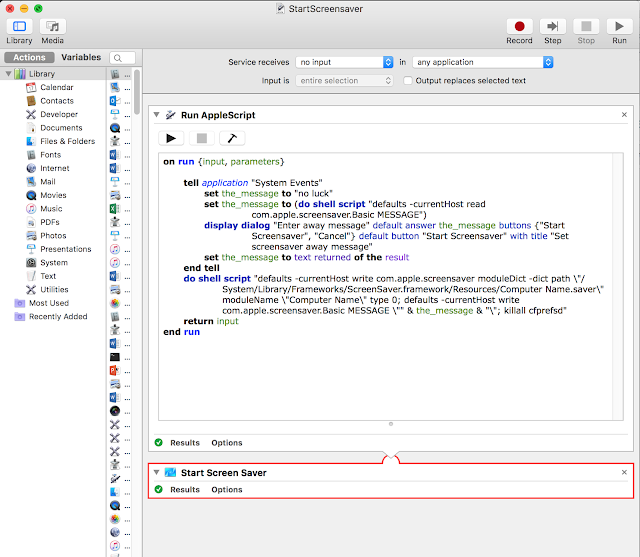
I am a focal point at work for various issues so I get lots of visitors to my desk who want to ask questions.  If I have to leave my desk, it is helpful to leave a note so people can find me if they really need me at that moment. I have used the Computer Name screensaver on my Mac with a custom message, but going to System Preferences -> ScreenSaver -> Options... to change the text was always a bit of a psychological burden, so I started looking into a way to change that text programmatically. After some internet research, I was able to develop an Automator service to prompt for a message and then start the screensaver using that message.  Here is the image of the automator service. I saved my service as StartScreensaver.  Then I opened System Preferences, went to Keyboard, and then Shortcuts to add a keyboard shortcut that will launch my service.  I chose Command-shift-8, but you can pick whatever you want. Now I just hit Command-Shift-...

Macbook Air 11 the best for me for years

I have been using an 11" macbook air as my primary computer since Apple first released them.  I find it to be the best machine for me for now.  In this article I describe what I use my computer for and how well the 11" macbook air performs.  My current machine is a 2015 Macbook air 11-inch with the i5 processor, 4GB RAM, 265GB storage, and USB 3.0 ports. Work I am engineer and use my macbook air for almost all of my work.  My work consists of writing and editing long-form, technical documents in collaboration with others marking up PDF drawings producing the occasional sketch or organizational chart personal information such as email, calendar, and contacts instant messages video conferencing with screen sharing video production some SharePoint administration. I do use two external, 24-inch monitors on my sit-stand desk at work with my laptop.  One is connected using the thunderbolt port and a DVI adapter.  The other is connected with a Disp...

MS Word and Track Changes

I discovered something nice in MS Word today regarding track changes. For most of the documents I need to review, I have wished that there was a way to tell Word not to track formatting changes. Nobody ever cares about them and they just make it take longer to accept individual changes. Today I discovered how to batch accept/reject all of the formatting changes only. You need to show only formatting changes, then use the arrow next to the Accept/Reject change button to choose Accept/Reject all changes shown. Then show the insertions and deletions as well as comments. Voila! No more formatting changes to clutter the view or take up your time. The other cool thing my friend showed me is how to copy the tracked changes, aka markup, from one document to another. My particular use case is when migrating a document under review to a new template while preserving the change history. All that is required is to turn off track changes in both the source and destination documents, view ei...